Direct Answer
To edit the footer in WordPress, navigate to Appearance > Customize to use the theme’s built-in footer builder, or Appearance > Widgets to modify footer columns. For advanced changes, edit the footer.php file via the Theme Editor or use plugins like WPCode to insert custom scripts.
Your website footer might look small, but it plays a significant role in how visitors see your brand. It’s often the last thing people see before leaving your site.
Many people want to edit their WordPress footer to add useful links, copyright text, or contact details. Some want to remove “Powered by WordPress” to make their site look more professional. Others update it to add social icons, newsletter signup forms, or critical legal pages like privacy policies.
Probably, you have changed your business name or redesigned your brand recently, and now your footer needs a fresh look. Whatever your reason, learning how to edit your footer gives you more control over your site’s identity. The good news is it isn’t as complicated as it seems.
In this guide, you’ll learn simple ways to customize your footer so it looks clean, helpful, and aligned with your brand.
What Is the Footer in WordPress?
The footer is the bottom section of your site. It loads on almost every page. Readers see it when they reach the end of your content.
Themes handle footers in different ways. Some show a simple copyright line. Others include menus, widgets, or branded credits. Modern block themes let you design it like any other page section.
You can use the footer to place links to pages like About, Contact, Blog, Services, Privacy Policy, and Terms. Adding social icons or a short sign-up form is another option.
The footer acts like a secondary navigation area. Visitors who finish reading can find new pages to explore. It directs them to the popular or recent posts on your site instead of leaving them stranded. Internal links added can strengthen your page structure, which improves how users navigate through the site.
7 Ways to Edit Footer in WordPress
You can change the WordPress footer through different paths depending on your theme and comfort level.
WordPress offers visual tools for most themes, and deeper control for users who want to work with plugins or code. Block themes use the Site Editor, classic themes rely on widgets or the Customizer, and advanced users can open theme files directly.
Below, you’ll find practical methods that help you adjust text, add links, insert scripts, or reshape the layout to suit your site goals.
1. Edit the Footer Using the Site Editor (for Block Themes)
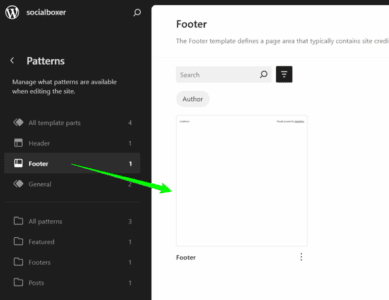
If your site uses a block theme, you can edit the footer with the Site Editor. Block themes include Twenty Twenty-Three, Twenty Twenty-Four, and many recent theme releases. This method gives you complete control without touching code.
Start in your WordPress dashboard. Go to Appearance → Editor to open the Site Editor. It shows a preview of your homepage with editable areas. Look for the template parts list or the footer area itself.
Click the footer to open its layout. You will see blocks arranged in rows or columns. Blocks might include text, menus, icons, or widgets. You can select any block to change its text, font, alignment, spacing, or link.
To add new elements, click the plus icon. You can add paragraphs, headings, navigation menus, social icons, or custom HTML. If you want a newsletter form, you can add a form block from your email plugin or use a shortcode block.
Block themes also allow for styling. You can change background colors, set padding, adjust column widths, and fine-tune spacing. These changes help the footer match your branding.
The Site Editor lets you preview before publishing. Review the footer across pages and screen sizes to see how it behaves. When you are happy, click Save. The change applies site-wide.
This method suits most users because it avoids code and gives visual control. If your theme supports it, this is the smoothest way to design a footer that fits your needs.
2. Edit footer widgets in WordPress
Many WordPress themes allow you to insert widgets in the footer area. They are useful to display ads, add text and images, create navigation menus, etc.
Sign in to WordPress and visit Appearance > Widgets to add and customize your footer widgets.
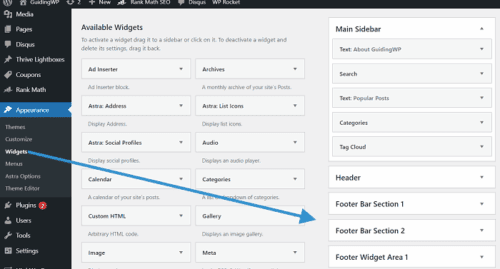
Locate the Footer widget area. Some WordPress themes, like Astra, have multiple options to insert widgets in the footer. For Astra, you can add widgets through the Footer bar section and the widget area.
Click a widget from the left side or drag it to the footer area to add. Customize settings according to your requirements. Visit your website in a new tab to view how your widget appears in the front-end.
3. Edit footer.php
If you have coding skills, you can edit the footer through theme files. But it is risky. A simple mistake is enough to break your entire website. So you should be vigilant while editing the theme.
It is better to do these things in a staging site. After successfully updating the new footer, simply push changes to the main site to save. Creating a child theme is necessary to apply changes forever. Otherwise, you will lose customization settings with the next theme update. Read this step-by-step guide to get detailed instructions regarding child theme creation.
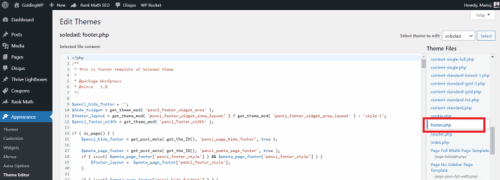
Open your theme editor first. Make sure that the correct theme is selected from the top-right corner of your screen. Click on the drop-down box to view all installed themes. Tap on Select to load theme files.
Find footer.php in the right pane. Open it. Then, the footer codes will load on the main screen. Customize them.
Finally, click on update to save changes.
4. Edit footer to remove copyright text
Removing copyright texts is the most common reason to edit the footer in WordPress. Almost every free theme will include a copyright text link in the footer to find new customers. Unfortunately, it affects your website’s identity.
Developers add theme copyright texts in two ways,
- Footer.php
- Theme customizer settings
Open Footer.php and search for keywords like ‘copyright’ or other similar words as they appear on your footer. If you can locate the exact copyright text there, remove the entire section without leaving any traces.
Don’t know what to remove? Contact a WordPress developer or post in WordPress support groups for expert guidance.
Premium WordPress themes often add copyright text via the customizer. Head to Appearance > Customizer and open footer settings.
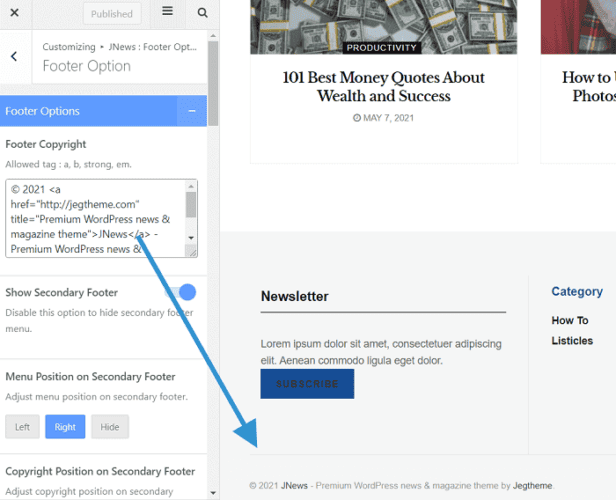
Locate and edit or remove your copyright text.
Go through other footer options to change its color, typography, style, etc. Modern WordPress themes such as Astra and GeneratePress have a built-in footer builder that gives you more control over the design.
5. Edit footer menu
Do you want to display post categories and page links in the footer area? For that, you should create a footer menu.
Visit Appearance> Menus to create and customize navigation menus.
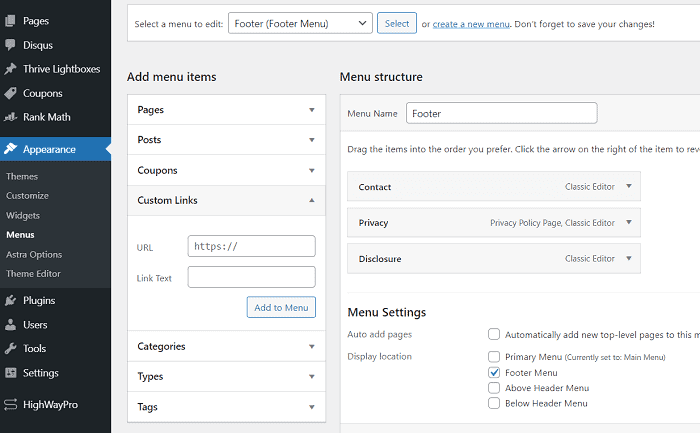
Click ‘Create a new menu’ option if you don’t have a footer menu already. To customize an existing menu, choose it from the drop-down box and tap the select button.
On the left side, WordPress will show various menu items that you can add to the navigation. Expand each section to view items in it. Drag an item to the main screen to add. Drag them again to the top or bottom to change their order.
On the bottom, you will see available menu locations as per your current theme. Check the Footer menu box and save.
There are two ways to insert the footer menu on your site. Via theme settings (Appearance> customizer) or footer widgets (Appearance> widgets). It depends on your website theme. Explore both options to find which works for you.
6. Customize the footer with CSS codes
This is the easiest method to edit the footer in WordPress. Open theme settings and go to the custom CSS section.
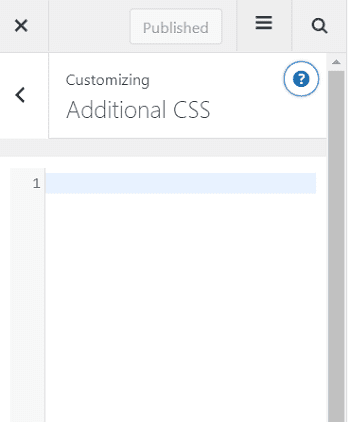
Unlike HTML codes, mistakes in CSS coding won’t damage your site. They can be easily reverted as well.
Start testing your coding skills. Monitor changes in real-time through the live customizer on the right side. Don’t forget to publish changes when you finish.
7. Customize the footer with plugins
Are you not familiar with coding? Don’t worry. You have alternative solutions. A plenty of WordPress plugins are available to insert footer codes and beautify your entire website (not only the footer).
1. Insert Headers and Footers
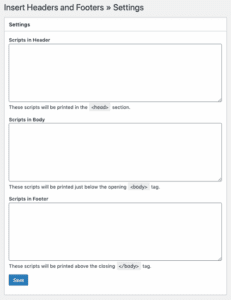
WPCode is a lightweight code insertion plugin for WordPress. Developed by WPBeginner, it lets you insert Google Analytics, custom CSS, and verification scripts in the header/footer of your site.
2. CSS Hero
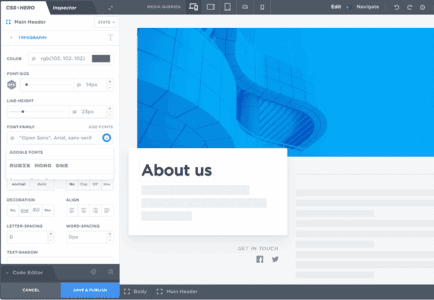
CSS Hero is the #1 CSS customizer plugin for WordPress. It is handy, and no coding skill is required to use this plugin.
Choose a page element from the main screen to edit. It covers the header and footer, text and image, login page, and other parts of your site. Change their color, background, font styles, and much more through the plugin dashboard on the left side.
CSS Hero is highly responsive and allows you to apply custom settings for various device types. It is packed with several readymade snippets that apply popular style combinations in one click and thereby save your time.
They offer premium customer support and a 30-day money-back guarantee in all subscription plans.
Click here to visit CSS Hero and choose a subscription plan with up to 70% discount (Limited period offer)
3. Yellow Pencil
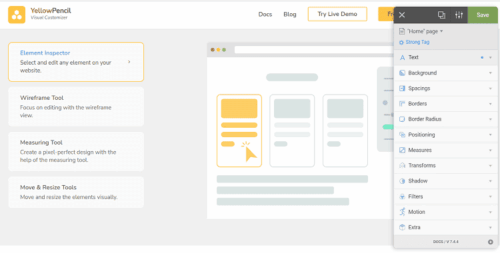
Yellow Pencil is another powerful plugin to beautify your WordPress website. It helps you to change colors, backgrounds, font styles, and many other things without editing even a single piece of code.
It is responsive and allows you to apply settings by device and page types. Yellow Pencil is cheap in pricing and best in quality. It is compatible with all popular WordPress themes and plugins.
Click here to visit Envato Market and buy Yellow Pencil with a 6-month premium customer support
Final thoughts
A website footer helps you direct readers to other internal posts or social media profiles. Display your most popular posts or recommended posts in the footer section. This is a proven strategy to improve your page traffic.
You can also insert legal links at the bottom to enhance user trust. Editing the WordPress footer is not a complex task. Follow these steps to design a professional-quality footer for your website.