
Selling products online is no longer limited to big brands. Anyone with selling interests can reach buyers worldwide. For that, you just need the right web platform and a clear marketing strategy.
WordPress.com makes this possible for beginners and growing businesses. It handles hosting, security, design, and auto updates. So, you can focus on products, branding, inventory, and payment collection.
From digital downloads to physical items, you can build an eCommerce store that works across countries and time zones. Set minimum or maximum quantities, offer discounts, and connect to top shipping carriers to send orders.
In this guide, I will show you how to set up an online store with WordPress.com step by step. You will learn how to choose the right plan, pick a store-ready theme, and add products. You will also see how payments and shipping work for global customers.
| Disclosure: Your support helps keep the site running! We earn a referral fee for some of the services we recommend on this page. |
- What is WordPress.com?
- Why Choose WordPress.com to Sell Products Globally?
- What You Need Before Starting Your Online Store
- Choose the Right WordPress.com Plan for E-commerce
- Creating Your WordPress.com Store
- 1. Create your WordPress.com account
- 2. Connect to a custom domain
- 3. Configure basic store settings
- 4. Install an e-commerce-friendly theme
- 5. Add products
- 6. Set Up Payments for Global Customers
- 7. Configure shipping options
- 8. Promoting your online store
- 9. Manage orders
- 10. Analytics & Tracking Sales Performance
- Conclusion
What is WordPress.com?

WordPress.com is a managed web-building platform that lets you build and host a website without managing servers. It uses the same software as the open source version, but handles the technical work for you. You get a place where your site stays live, secure, and automatically updated.
This platform works well for people who want to focus on creating content or selling items rather than managing optimization. It provides various plans that include themes, storage, and support. Because the hosting is built in, you can start your project in minutes.
Why Choose WordPress.com to Sell Products Globally?
Choosing WordPress.com lets you easily create and manage a website and reach customers in any country. The system includes features that make international business easy to handle.
- Multi-Currency Payments: You can accept payments in dozens of currencies through built-in tools like Stripe and PayPal.
- Global Shipping Tools: The commerce plans connect with international carriers to calculate shipping rates and print labels.
- Automatic Tax Math: It handles GST, VAT, and local sales taxes so you can stay compliant with different laws.
- Speed Everywhere: A built-in content delivery network (CDN) ensures your store loads quickly for shoppers in London or Tokyo.
- Mobile Shopping: Your store works perfectly on phones, which is how most global buyers shop.
What You Need Before Starting Your Online Store
Starting an online store is an exciting journey towards success. Before you launch your business, you need to be clear on exactly what you are selling and who your ideal customer is.
To get started, make sure you have these essentials in place:
- A Product Plan: Know your niche and have high-quality photos and descriptions for your items.
- Strong Branding: Choose a memorable business name and a clean logo to help you stand out.
- The Right Platform: Decide whether to build your own website or use a marketplace like Amazon or Etsy.
- Logistics: Set up a secure way to accept payments and a reliable system for shipping packages.
- Legal Basics: check for any required business licenses or tax registrations.
Finally, have a simple marketing plan to help people find your store. Preparing these elements early lets you focus on selling rather than fixing problems later.
Choose the Right WordPress.com Plan for E-commerce
When building a shop with WordPress.com, choosing between the Business and Commerce plans is a critical decision. While the Business plan technically allows you to run a store by installing the WooCommerce plugin, the Commerce plan is the superior choice for serious merchants.
Think of the Business plan as a “Do-It-Yourself” kit. It gives you the foundation, but you have to purchase essential features separately.
If you need real-time shipping rates from carriers like UPS or FedEx, automated tax calculations, or the ability to sell product bundles, you must buy individual extensions. These extra subscriptions can quickly add up to hundreds of dollars a year, exceeding the cost of the plan upgrade.
The Commerce plan (formerly eCommerce) is a “batteries-included” solution. It bundles these high-value premium extensions directly into the price, saving you money in the long run.
This plan also offers a more streamlined dashboard designed specifically for managing products and orders, rather than just website content. Furthermore, this plan typically eliminates WordPress.com’s added transaction fees, ensuring you keep more of your profit on every sale.
For a professional store with fewer technical headaches and better value, the Commerce plan is the smarter investment.
Creating Your WordPress.com Store
Building an online business doesn’t have to be complicated. In this section, I explain the entire process of launching your shop on WordPress.com, taking you from a blank page to a fully functional business.
1. Create your WordPress.com account
Visit WordPress.com and select the Commerce plan.
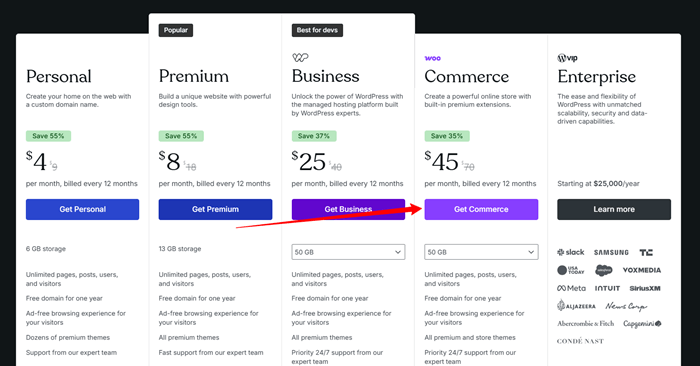
As I mentioned earlier, this is the perfect plan for setting up a WooCommerce store on WordPress.com. It comes with all the tools you need to set up and manage an online business.
Next, WordPress.com will ask whether you want to create a new store or migrate an existing business. Choose an appropriate option to go to the next step.
WordPress.com allows you to sell physical or digital products, offer online courses or services, accept donations, etc. Set your business type. Then, create your account. Sign in with your Google, Apple, or GitHub accounts for a faster sign-up. Alternatively, you can use email to create a new WordPress.com account.
Luckily, you will get a 14-day free trial to test WordPress.com’s premium tools and features freely. Activate your free trial, and you will be redirected to the WordPress.com dashboard.
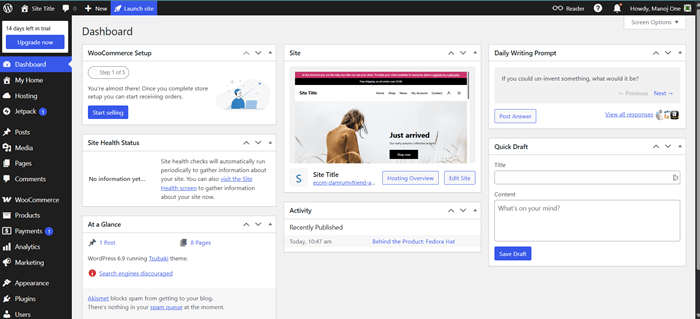
From here, you can connect to a custom domain and configure various WooCommerce tools. Trial users can activate all features until they upgrade to the paid plan.
2. Connect to a custom domain
A custom domain is essential for your online store. It should be short and unique.
If you want to craft a memorable store name, use a domain name suggestion tool. Enter your target keyword, and these tools will suggest matching names in seconds. They will also tell you whether your target domain is available for registration.
Some of these tools will also create professional-quality logos that can better represent your store. Once a domain is selected, upgrade to a paid plan to enjoy all premium features and get your domain for free. Then, connect your website to this domain.
3. Configure basic store settings
Open your general settings and enter a site title and tagline that best represent your shop.
Add your selling, shipping, and default customer locations to support tax and shipping laws. Set your store address and currency based on where you plan to sell your products globally.
Select your shop page, add measurements, and update review settings as next. Connect your email address for store notifications and customer updates. Review WooCommerce settings to ensure that you haven’t missed any part.
Check your reading settings to confirm that your store is displaying on your homepage. Save each change as you go.
These basic settings prepare your WordPress.com online store for smooth operations and clean customer interactions.
4. Install an e-commerce-friendly theme

A responsive, fast-loading store theme helps you serve pages faster and rank higher in search engines. The Commerce plan users will get access to all premium themes on WordPress.com.
Go to Appearance > Themes and search for themes using keywords. Analyze theme features and the first look.
A flexible store theme will give you full control over website design. Consider a theme with header & footer builder, device-based settings, and fast support. Check how your store appears in the front end for homepage, products, and shop. Ensure that they load smoothly on all device types.
5. Add products
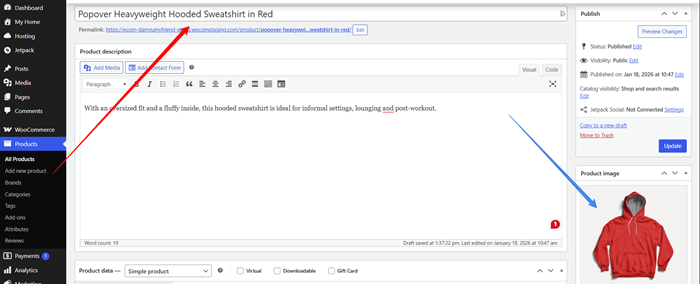
Head to the Products section on WordPress.com. Click on the option to add a new product.
Start with the product name. Write a clear description. Upload high-quality images to show off the details. Add multiple images to the Product Gallery on the right sidebar. This helps your store visitors get a close look at the item.
Set the price carefully. If you are offering introductory or limited-time deals, set a sale price and schedule the offer period. This will boost store conversions during the period.
Select the product type. You can sell physical items, digital files, or services. Enter stock status and order limits, if any. Set shipping rules for physical products. Select product categories to keep your store organized.
Add tags so people can easily find relevant products. Finally, finally publish your product page. Once published, the product will appear in your store. Repeat the process to build a full catalog ready for global customers.
6. Set Up Payments for Global Customers
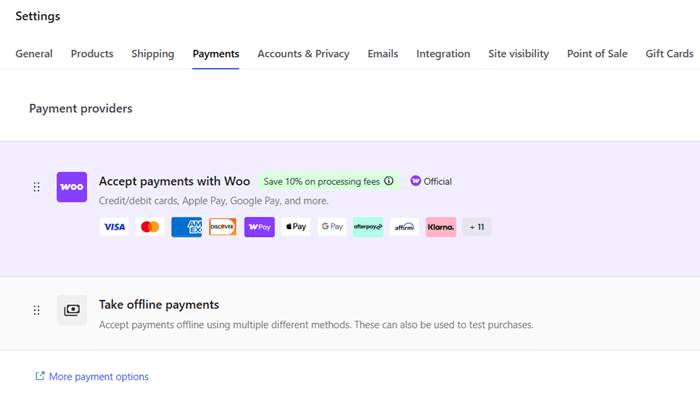
WordPress.com supports all major payment methods, including credit cards, debit cards, Apple Pay, Google Pay, WooPay, and more, to collect payments from customers.
You can also accept bank transfers, checks, or cash on delivery to sell items. Open Payment settings and configure channels that you want to connect.
7. Configure shipping options
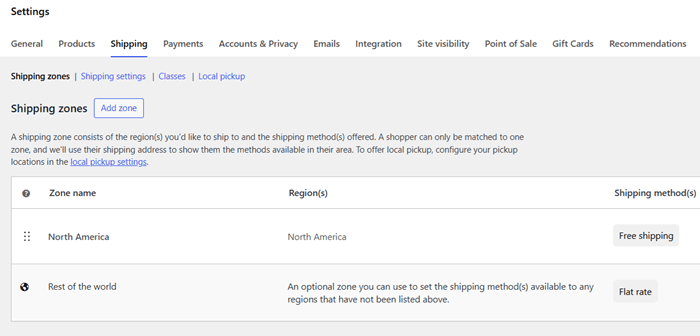
We already added the shipping and selling location in the previous steps. Now, you need to create a shipping zone for each region.
Pick a region and enter your shipping policy. Mention whether you offer free shipping or flat-rate shipping to selected countries or states. If any minimum order value is required in order to be eligible for free shipping, enter the amount.
8. Promoting your online store
Marketing tools inside WordPress.com help you grow your store without third-party tools. You can send follow-up emails and recover abandoned carts through AutomateWoo or similar plugins.
Advertising products on Google expands your store’s visibility. You can connect your store with Google listings and shopping feeds. Products will appear in relevant search results. This is useful to attract buyers who already plan to purchase and are searching for your product keywords.
Social media channels extend reach further. You can share products across platforms like Facebook, Instagram, and TikTok. Posts and ads lead visitors straight to product pages.
Gift cards help you build customer loyalty and increase sales. Shoppers can buy them for friends or family with personalized messages. As a result, new customers will visit your store and buy items.
9. Manage orders
Visit WooCommerce > Orders to view and manage orders. Each order comes with the payment confirmation, customer data, and purchased items. Review orders and send them via your shipping partner. Add tracking details once it is shipped.
Respond to customers from the same dashboard. Answer their questions politely. Use order notes for internal purposes.
Create a contact us page for store inquiries. Also, provide the email addresses of the respective departments to handle pre-sale and client queries. Add a knowledge base to answer common questions. Clearly state your return and refund policies to avoid confusion.
Don’t forget to set automated emails for order confirmations and support requests. This will enhance user trust.
10. Analytics & Tracking Sales Performance
Analyze helps you track store performance and guides you on promotions. Head to the Analytics section to find your total sales, net sales, and orders received for a certain period.
You will see the most popular products and categories on your online store. The graphical chart is useful to compare your sales with the previous period. This will tell you whether your new product launch or marketing campaign was successful.
The Analytics section will provide comprehensive data on top products, categories, downloads, coupons, and more. Analyze your traffic and sales data carefully and update strategies to boost conversions.
Conclusion
Building an online store no longer requires deep technical expertise or a large team. WordPress.com provides a clear path for small businesses and home-based sellers to sell products worldwide.
You can add and manage products, accept global payments, handle shipping, and track sales all from one place.
Add a few products. See how buyers respond. As sales grow, you can expand to new regions, add more payment options, and improve your store design. WordPress.com supports this growth without forcing you to rebuild your site.
Selling online is all about product quality and after-sales service. With the right plan and setup, WordPress.com can serve as a strong foundation for long-term online sales. Your store can reach a global audience while you maintain control over day-to-day operations.
Click here to visit WordPress.com and launch your online store today (14-day free trial)